
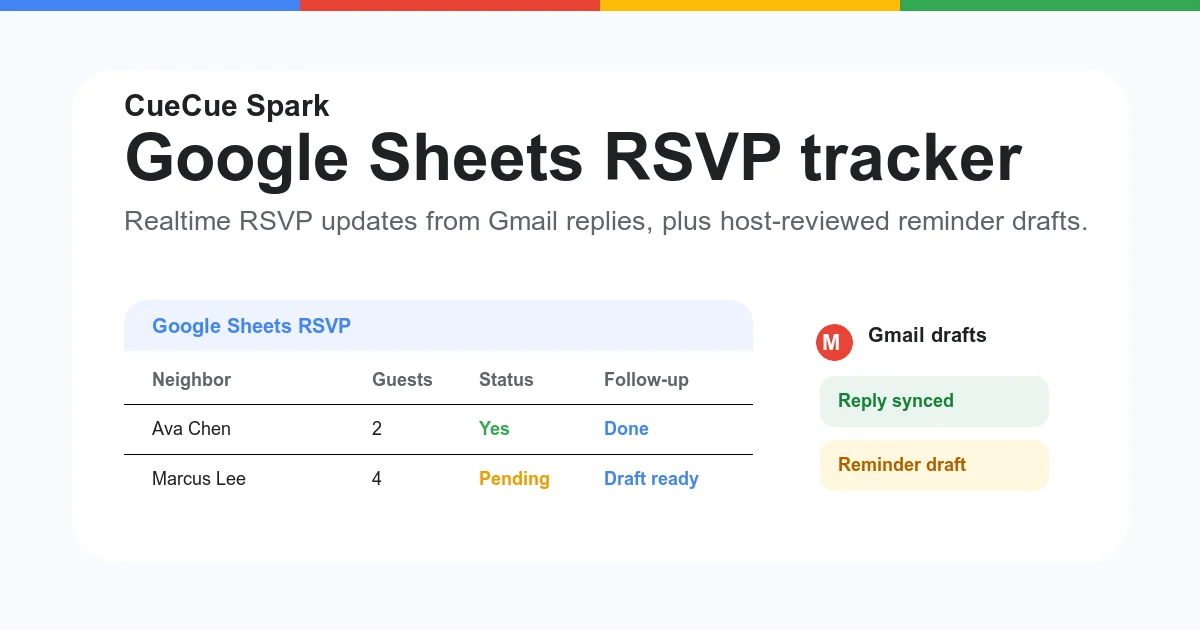
A Google Sheets RSVP tracker is a shared spreadsheet for guest names, attendance status, headcount, meal notes, and follow-up progress. The best setup usually pairs a guest-facing RSVP form or link with a private planning sheet that the host can sort, filter, and update.
Key Takeaways: Use Google Forms when guests need a structured RSVP form. Use Google Sheets when the host needs a live planning table. Use an RSVP link when guests need one mobile-friendly place for the event details, response action, and reminders.
What is a Google Sheets RSVP tracker?
A Google Sheets RSVP tracker is a spreadsheet used to organize event responses in one live table. It works well for weddings, neighborhood dinners, workshops, meetups, launches, and private events where the host needs a current view of who is coming.
The tracker usually includes guest name, email, phone, household size, RSVP status, meal preference, notes, invite sent date, reminder status, and last updated date. That makes it more useful than a static guest list.
Google's official Forms help explains that form responses can be viewed in Sheets from the Responses tab (Google Docs Editors Help). That is the simplest path if you want guests to submit responses without editing the spreadsheet.
For hosts who want a guest-facing page first, CueCue also has a focused Google Sheets RSVP workflow that connects the RSVP experience with a planning sheet and Gmail follow-up context.
How do you create a Google Sheets RSVP system?
The fastest Google Sheets RSVP system has three parts: a public response path, a private response sheet, and a follow-up routine. Google Forms can collect structured answers, while Sheets becomes the host's operating view.
Start with the event questions. Keep the form short enough that guests can finish it from a phone. A practical RSVP form asks for name, email, attendance, guest count, dietary notes, and one optional comment field.
Then connect the form to Sheets. Google says Forms users can open the Responses tab and choose View in Sheets to send responses into a spreadsheet (Google Docs Editors Help).
The basic flow looks like this:
- Create the RSVP form or event page
- Send responses to Google Sheets
- Add status, reminder, and planning columns
- Use filters and formulas to monitor attendance
- Send reminders to people who have not replied
- Close the form when the event deadline passes
If the event needs a polished destination, pair the spreadsheet with an RSVP link maker or online invitation maker so guests see the details before they respond.
What fields should your RSVP sheet include?
A useful RSVP sheet should separate guest identity, attendance, logistics, and follow-up. That structure keeps the sheet readable when responses increase and helps the host avoid mixing planning notes with guest answers.
Use these columns as a starting point:
- Guest name
- Email address
- Phone number
- Household or group
- RSVP status
- Guest count
- Meal preference
- Dietary notes
- Invitation sent
- Reminder status
- Last contacted
- Host notes
For RSVP status, keep the options simple: Yes, No, Maybe, and Pending. Too many statuses make the sheet harder to filter. If you need more detail, add a separate notes column instead of creating extra status labels.
The same principle applies to meal preferences. A dropdown is useful when choices are fixed. A free-text note is better when guests need to explain allergies, accessibility needs, or special circumstances.
How do Google Forms and Google Sheets work together?
Google Forms collects the answers, and Google Sheets stores them in rows. Google's Forms cheat sheet describes event registration as a Forms use case and notes that responses can be sent to Google Sheets (Google Workspace Learning Center).
This setup is strong because guests never need access to the spreadsheet. They only complete the form. The host can still view summaries in Forms, open the linked response sheet, download CSV responses, and turn response notifications on.
For a small private event, that may be enough. For a larger event, add a second tab called Planning or Dashboard. Keep raw form responses untouched, then use formulas or manual review in the planning tab.
That separation matters. Raw responses are your source of truth. The planning tab is where you can normalize names, group households, mark reminders, and add operational notes without breaking the original response data.
How do you count RSVPs in Google Sheets?
Google Sheets can count RSVP statuses with formulas such as COUNTIF. Google says COUNTIF returns a conditional count across a range (Google Docs Editors Help). That makes it useful for live RSVP totals.
If RSVP status is in column C, simple formulas might look like this:
=COUNTIF(C2:C,"Yes")
=COUNTIF(C2:C,"No")
=COUNTIF(C2:C,"Pending")
If guest count is in column D, you may also want a confirmed headcount. A status count tells you how many responses are yes. A guest-count total tells you how many people are expected.
For planning, separate these numbers:
- Confirmed responses
- Confirmed people
- Declines
- Pending guests
- Missing email addresses
- Guests needing meal follow-up
- Guests needing reminder messages
This keeps the RSVP sheet useful for real decisions, such as food quantities, seating, name tags, room size, and final reminder timing.
Can Gmail replies support an RSVP sheet?
Gmail can support an RSVP workflow, but hosts should treat inbox automation carefully. Google Apps Script includes GmailApp methods for creating drafts and sending emails, and those methods require authorization scopes (Google for Developers).
For many hosts, the safest workflow is not full automation. It is draft-assisted follow-up. The sheet identifies guests who have not replied, then the host reviews reminder drafts before sending.
Google's MailApp documentation also notes that MailApp is focused on sending email and cannot access a Gmail inbox (Google for Developers). That distinction matters if you are deciding between sending reminders and reading replies.
CueCue's Google Sheets RSVP page is built around this practical idea: keep the guest-facing RSVP experience clean, use Sheets for status, and use Gmail context for follow-up rather than asking guests to manage a spreadsheet.
When should you use a form, sheet, or RSVP link?
Use a form when the host needs structured answers. Use a sheet when the host needs a planning database. Use an RSVP link when guests need a clean destination with event details, response action, and confirmation context.
These tools solve different parts of the same problem. A Google Form is the input. A Google Sheet is the operating table. An RSVP link is the guest-facing entry point.
For a small dinner, a sheet alone may work if the host updates responses manually. For a workshop or wedding, a form-to-sheet setup is cleaner because it reduces manual copying. For public or semi-public events, a shareable event page gives guests more context before they respond.
The best setup is often:
- CueCue or another page for event details
- Google Forms or an embedded form for responses
- Google Sheets for tracking
- Gmail for reminders and confirmation follow-up
How should hosts publish the RSVP experience?
The RSVP sheet should usually stay private. Guests should receive a link to the invitation, RSVP form, or event page, not the planning spreadsheet. That keeps personal details, attendance notes, and follow-up status away from the public view.
If you are hosting a casual event, a simple form link may be enough. If the event has a schedule, venue notes, host bio, images, parking details, or sponsor information, use a dedicated RSVP form or event page.
CueCue is useful when the RSVP experience needs to feel like a small mobile page instead of a plain form. You can publish event details, add the RSVP action, and keep the planning workflow connected behind the scenes.
For reusable layouts, browse CueCue templates. For a custom event or launch destination, a focused web card can hold the invitation, response path, and next action in one place.
Google Sheets RSVP FAQ
These short answers cover the questions hosts usually ask before building an RSVP tracker in Google Sheets.
Can I use Google Sheets as an RSVP tracker?
Yes. Google Sheets works well as a private RSVP tracker for guest names, response status, headcount, notes, and reminder progress. For guest submissions, connect a Google Form or RSVP page so guests do not edit the sheet directly.
How do I connect a Google Form to Google Sheets?
Open the form, go to Responses, and choose View in Sheets. Google's help documentation describes this as the way to view all responses in a spreadsheet.
What columns should an RSVP tracker have?
Start with guest name, email, RSVP status, guest count, meal preference, dietary notes, reminder status, and host notes. Add event-specific fields only when they change planning decisions.
Can Google Sheets count how many people are coming?
Yes. Use COUNTIF to count RSVP statuses and separate formulas to total guest counts. COUNTIF is useful for counting rows that match values such as Yes, No, or Pending.
Should guests see the RSVP spreadsheet?
Usually no. The spreadsheet should stay private because it may contain emails, attendance status, notes, and reminder history. Share the RSVP form, invitation page, or event link instead.
Is CueCue a replacement for Google Sheets?
No. CueCue is the guest-facing RSVP and event page layer. Google Sheets is the planning table. They work best together when the host wants a clean public RSVP experience and a private tracking workflow.