
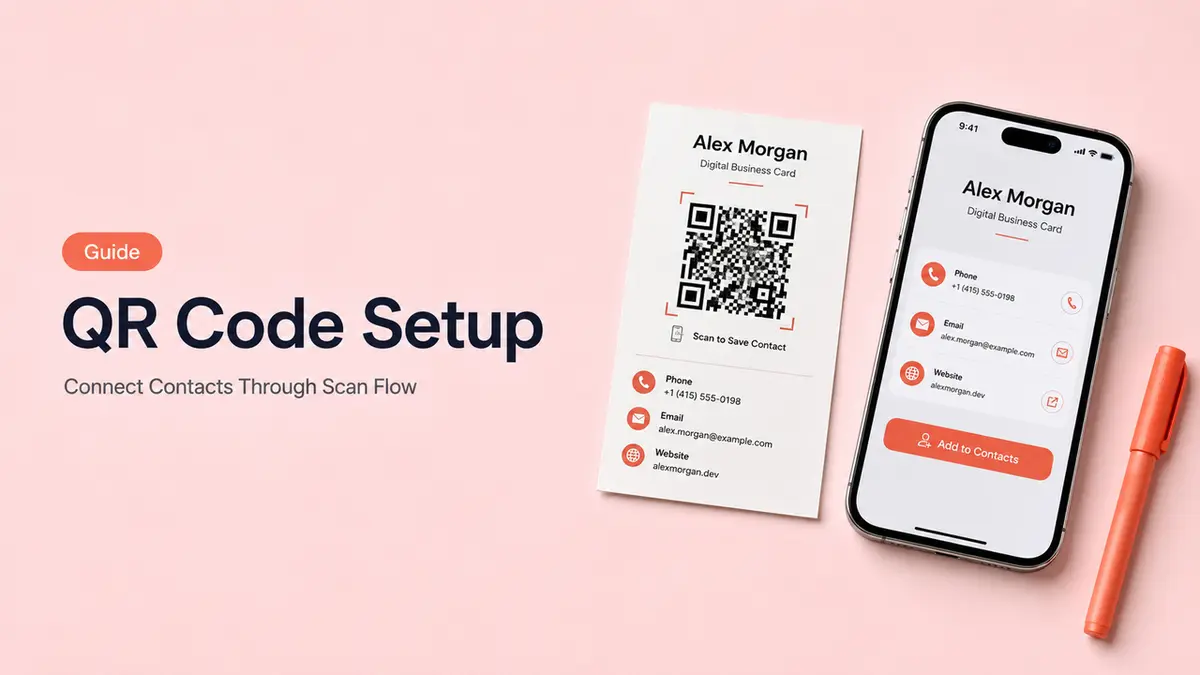
The first time I stuck a QR code on my laptop, I cared way too much about whether the little square looked “clean.”
This guide starts after you already have a live card page. Now we are setting up the digital business card QR code so it opens the right mobile page, shows the right action, and does not turn into a dead little sticker six weeks later.
Tiny square. Real consequences.
Before You Create the QR Code
Choose the live card page
Do not create the QR code first.Create the live card page first.
Then point the QR code to that page.When someone scans it, they should not land on a half-built page.
They should see your contact details. The useful links. The booking option, if booking matters. And if the goal is lead capture, there should be a simple way to send an inquiry without digging around.
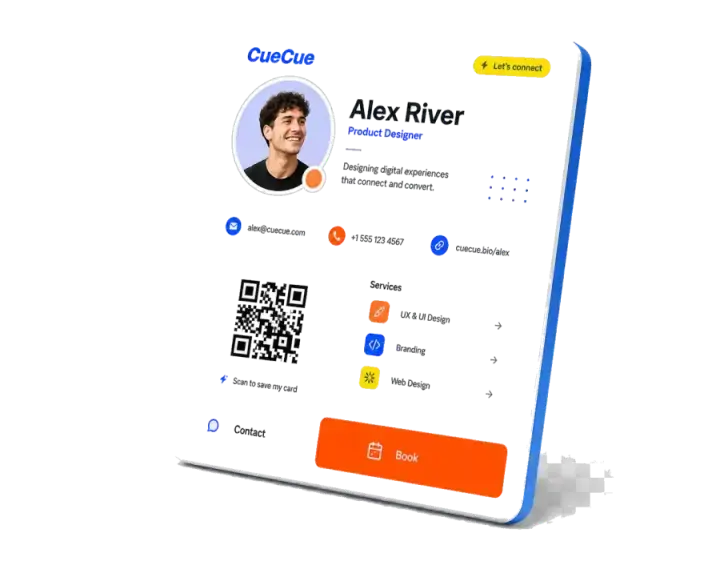
For a CueCue-style card, that might mean:
- Name and role
- Primary contact button
- Booking link
- Inquiry form
- Portfolio or offer link
- Location or service area
- Social proof, if you have it
- One clear next step
For the QR itself, keep the destination boring.
Not permanent. Boring.
Send it to a live card page you can still edit.
Because that code may travel farther than you planned: business cards, a badge, a table sign, a flyer, the sticker by your front desk. Once it is printed or shared, the square is basically out of your hands.
The page behind it is the part you can still fix.
Change the booking link there. Swap the offer there. Update the contact details there.
That is the whole safety net.
A static vCard file can work well if all you want is fast contact saving. Scan, save, done.
That is the tradeoff.A vCard is good at saving contact details. It is not great at carrying the rest of the story: booking links, offers, forms, campaign notes, or the little bit of context that tells someone what to do after they save you.
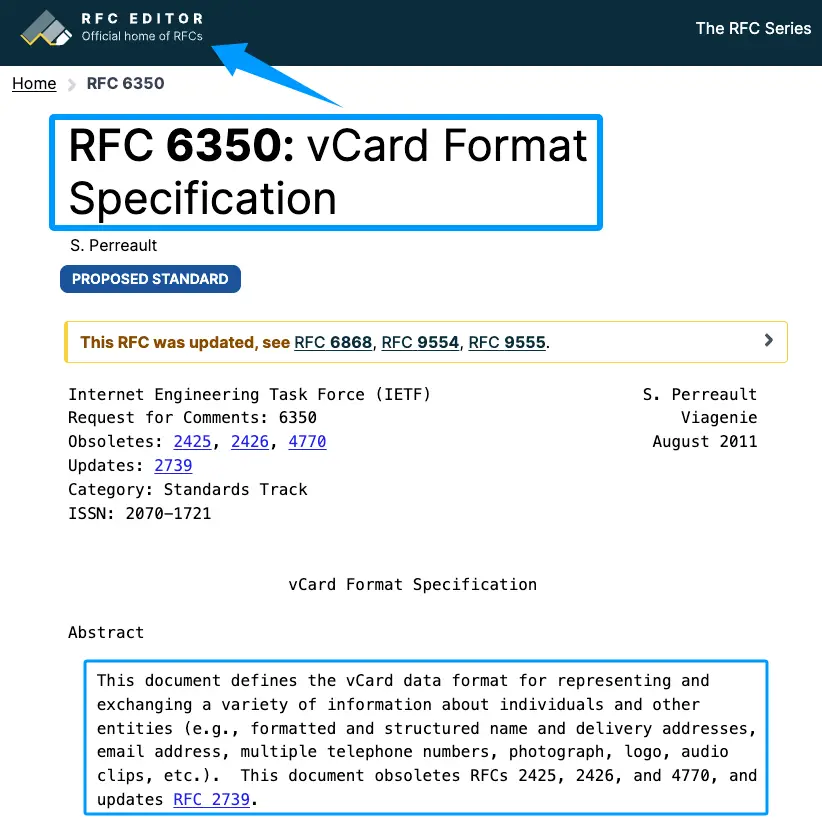
The RFC 6350 vCard specification covers address book details like names, phone numbers, email addresses, photos, logos, and URLs.
Useful. Just not always enough for a card that needs to create action.
Decide the next action after scan
The scan is not the win.
The next action is the win.
Before you touch a business card QR code generator, write this sentence:
“After someone scans this QR code, I want them to ___.”
Fill the blank with one action:
- Save my contact
- Book a call
- Request pricing
- Send an inquiry
- Get directions
- Join a list
- View my work
- Claim an offer
Pick one.
I know, it feels rude to your other links. Let them be supporting links lower on the page. The top button should match the reason this QR exists.
For a salon, that might be “Book an appointment.” For a real estate agent, “Call me about this listing.” For a creator, “Request my rates.” For a pop-up booth, “Join the waitlist.”
If you cannot name the action, the QR code is not ready.
QR Code Setup Workflow
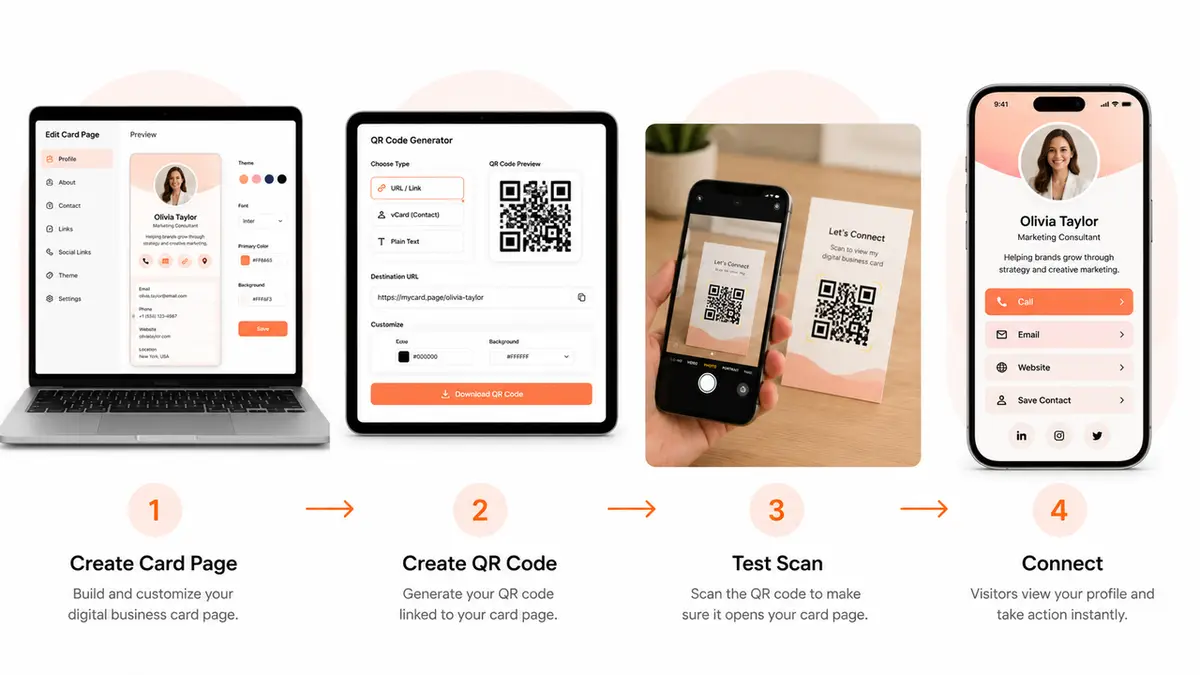
Connect the card page
Once the card page is ready, use the page URL as the QR destination.
Before you choose a generator, check these four things:
- Can you update the destination later?
- Can you download a high-quality PNG, SVG, or PDF?
- Can you test scans before publishing?
- Can you keep ownership of the destination URL?
That last one matters more than people think.
If your QR code points to a short link or hosted URL you do not control, you are trusting that service to stay active, editable, and available. That may be fine for a temporary campaign. For printed business cards, signs, menus, booth materials, or packaging, I would rather use a URL attached to a card page I can maintain.
QR size also depends on how much data you put inside the code. DENSO WAVE explains that each QR Code version has a maximum data capacity, and more data means more modules, which makes the symbol larger and denser.
Translation: encode a short URL, not a giant block of contact data.
Cleaner code. Easier scan.
Preview the mobile scan path
Do not stop when the QR image looks good on your laptop.
Scan it like a tired person would scan it.
Use your phone camera. Try it from a little distance. Try it in normal indoor light. If it will go on a printed card, print a test version and scan that too. Screens lie. Printers have opinions.
Then check the mobile path:
- Does the card open quickly?
- Is the main action visible without hunting?
- Are buttons easy to tap?
- Does the booking link work?
- Does the form submit?
- Does the contact save option behave correctly?
- Does the page still make sense without perfect Wi-Fi?
For tap targets on the mobile card page, W3C’s WCAG 2.2 says pointer input targets should be at least 24 by 24 CSS pixels, with specific exceptions. For a QR landing page, I would go bigger than the minimum. Scanners are often standing, walking, holding a bag, or trying not to block a line.
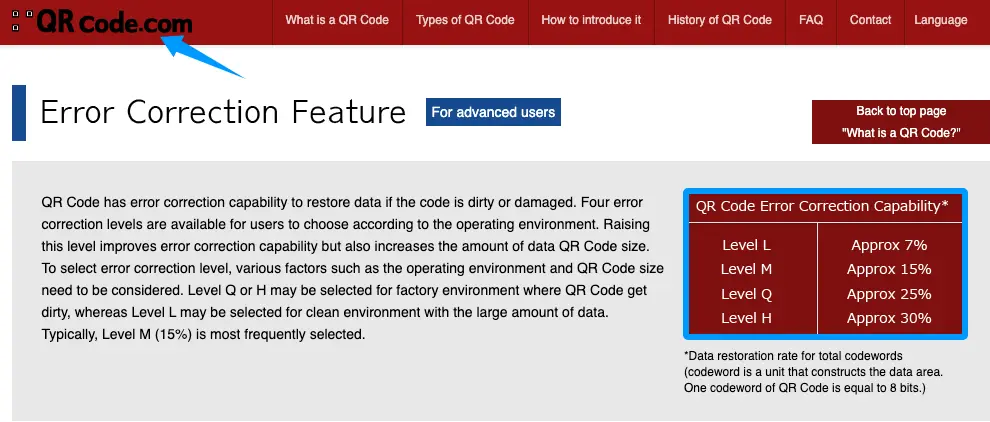
Also check error correction if your QR tool lets you choose it. DENSO WAVE notes that QR codes have four error correction levels, and higher levels can help restore data if a code gets dirty or damaged, though they also increase QR size.
For clean digital use, lower or medium settings may be enough. For stickers, signs, menus, or cards that will get handled, do not treat damage like a rare event. It happens.
Where to Use the QR Code
A digital business card QR code should show up wherever people already meet you.
Start with the obvious places:
- Printed business cards
- Event badges
- Booth signs
- Table tents
- Flyers
- Packaging inserts
- Email signatures
- Storefront windows
- Menus or service sheets
- Presentation slides
- Video call backgrounds
- Social profile graphics
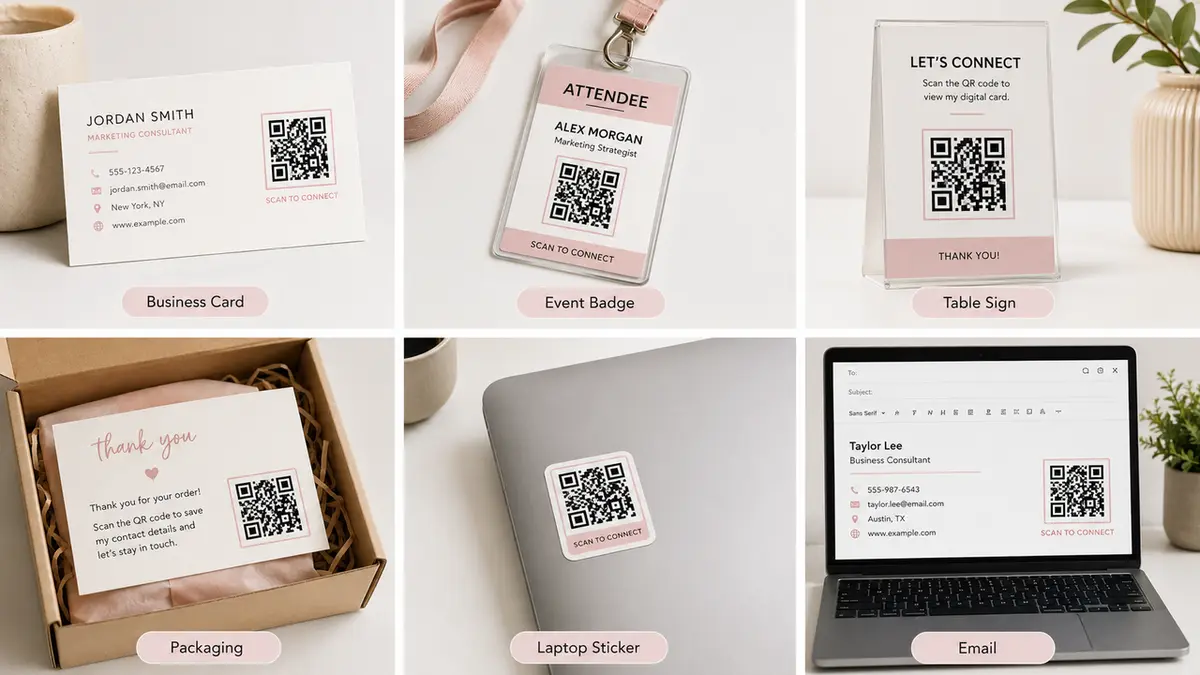
Each placement needs the same destination discipline: one scan, one clear next step.
Printed cards deserve their own check because that is where QR mistakes get expensive. MOO’s QR Code Business Cards page frames the QR code the right way: as the thing that connects a printed card to a website URL, phone number, or vCard.
That is the mental model I would use here too. Keep the printed card simple. Let the mobile card do the heavier work: booking, contact, and lead capture.
For a creator or freelancer, the QR can sit on a laptop sticker, a media kit, a PDF rate card, or a conference badge. Mine lives best in places where typing a handle would be annoying.
Which is most places, honestly.
Limits and Risk Notes
QR codes are sturdy, but they are not maintenance-free.
A printed QR card can break later for very ordinary reasons. The URL expires. The page gets unpublished. The booking tool changes. Someone loses access to the account.
That is why I like the QR destination to be boring, stable, and easy to maintain.
Use one stable card URL. Update the card behind it.
There are also privacy questions. A mobile business card can show more than you may realize: phone number, address, calendar link, social profiles, form fields, all of it.
Only publish the details you would be comfortable letting a stranger see after one scan. If you need a private version for certain contacts, make a separate card.
For campaigns, be careful with reuse. If the same QR code appears on a spring offer, a summer pop-up, and a permanent business card, the page can become confusing fast. Reuse the QR only when the audience and action stay the same.
And keep a backup URL near printed materials when the context matters. A tiny short URL under the code can save the moment if someone’s camera app struggles, the print is damaged, or the QR is too small.
Not glamorous. Very useful.
Conclusion
A digital business card QR code is not just a share shortcut. It is the front door to a mobile page that should help someone do one thing.
So set it up in this order: finish the live card page, choose the scan action, connect a stable URL, test the mobile path, then print or share the QR where people already meet you.
Your one move today: scan your current QR code from your own phone and check whether the first button still matches what you want people to do.
FAQ
What if a printed QR card stops working later?
Keep the physical card if the QR destination can still be recovered.
If the QR still points somewhere recoverable, fix that first. Update the page, restore the URL, or redirect the old destination to your current card.
If the code depends on a service you no longer control, do not keep forcing it. Retire that print batch and make a new QR tied to a URL you own.
Can one QR card support several locations?
Yes, if the page is built for that.
A small fitness brand could do this with one QR code.
Scan once, choose a location, then land on the right booking page. Nice and tidy.
But once each location has its own hours, staff, offer, or contact rules, I would split them. Separate QR codes are less elegant, maybe. They are also a lot easier to maintain.
Should printed cards include a backup URL?
Add a short, readable backup URL under the QR code, especially on business cards, flyers, menus, and event signs.
It is not pretty, but it helps. The QR might get scratched. It might print too small. The lighting might be bad. Someone’s phone camera might decide to have a dramatic little day.
Who should own QR maintenance after launch?
Give one person ownership before anything gets printed. That person should know the boring but important stuff: where the QR points, how to edit the card page, how to test the scan path, and when to review it.
On a small team, that owner is usually the business owner, the marketing lead, or whoever already handles website and booking updates.
Can I reuse the same QR across campaigns?
Sometimes. Reuse it for an evergreen card, like your main contact or booking page. Make a new QR when the audience, offer, location, or next action changes. A holiday offer and a permanent digital business card should not fight over the same scan.
About this content
- Written by
- Mia Anderson, UGC Creator · Content Creator
- Reviewed by
- CueCue Team, Editorial review desk
- Last updated
- July 8, 2026
- Editorial standard
- CueCue articles are written for practical use, checked for clear sourcing, and updated when product or policy details change.