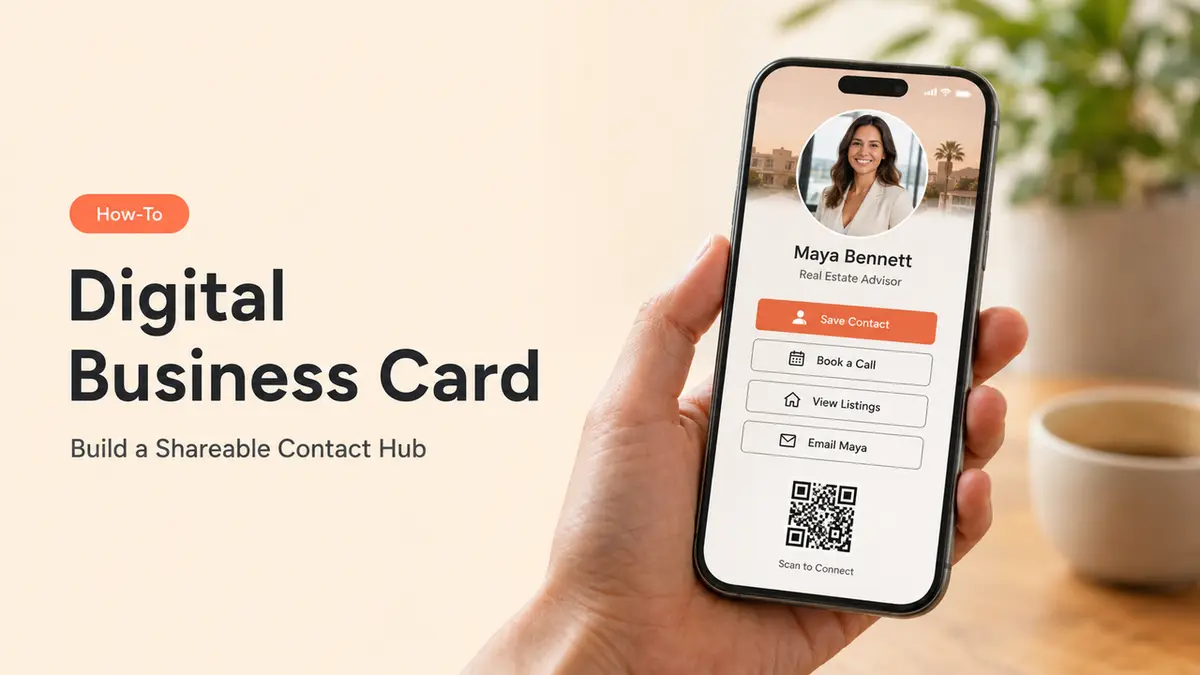
The best digital card I ever used was not the nicest-looking one on my phone.
It was the QR sticker on my laptop.
Someone at a meetup asked what I did. I pointed to the sticker, they scanned it, and the page did what my old links never did cleanly: it gave them somewhere to go next. Contact me. See my work. Book a quick call.
That is what a card is supposed to do.
So if you are figuring out how to make a digital business card, I would not start with colors. Start with the scan, tap, or click after the hello. What do you want that person to do?
Before You Start
Pick the main action
A custom digital business card gets messy fast when it tries to carry everything: resume, website, media kit, shop, booking page, and the full “about me” spiral.
Pick one main action first.
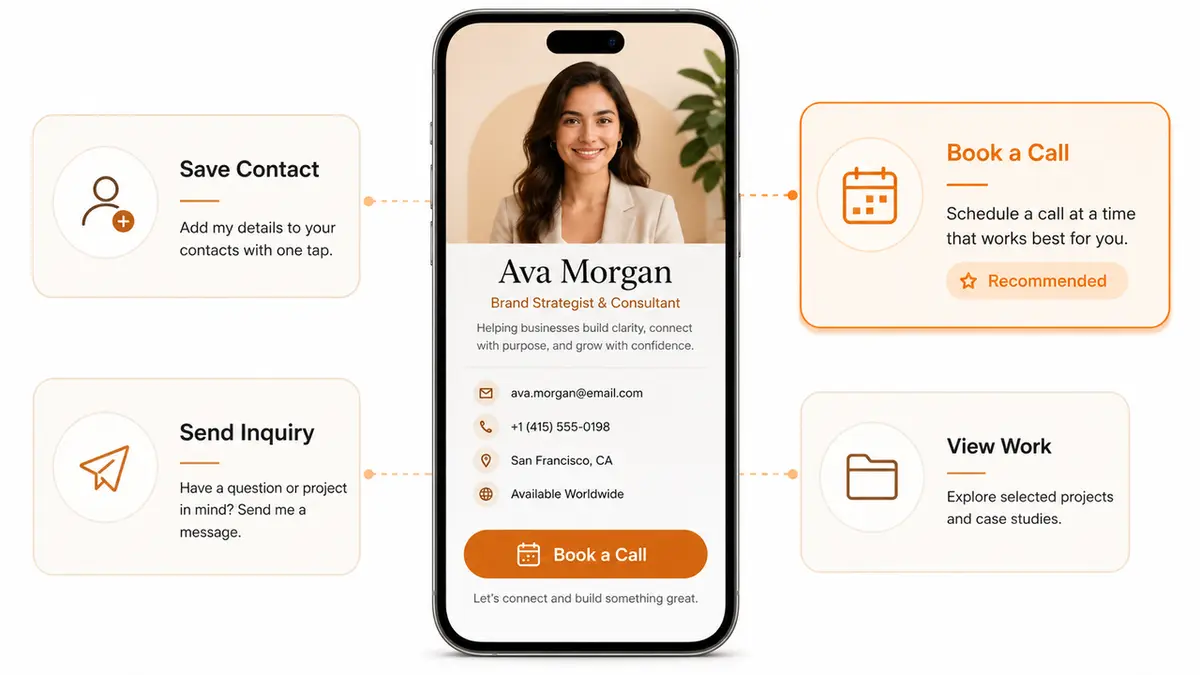
For most professionals, that action is one of these:
- Save my contact
- Book a call
- Send an inquiry
- View my work
- Request my rates
- Visit my store or service page
This sounds small. It is not.
The main action decides what goes at the top of the card, what gets pushed lower, and what you should leave out completely. If the card is for a trade show, “save my contact” may matter most. If you are a freelancer, “send an inquiry” may beat a generic phone button. If you are a local service provider, booking or directions might deserve the first tap.
I like to write the action as a plain sentence before building anything:
“After someone scans this card, I want them to book a 15-minute intro call.”
That sentence becomes the whole page.
Choose the right card format
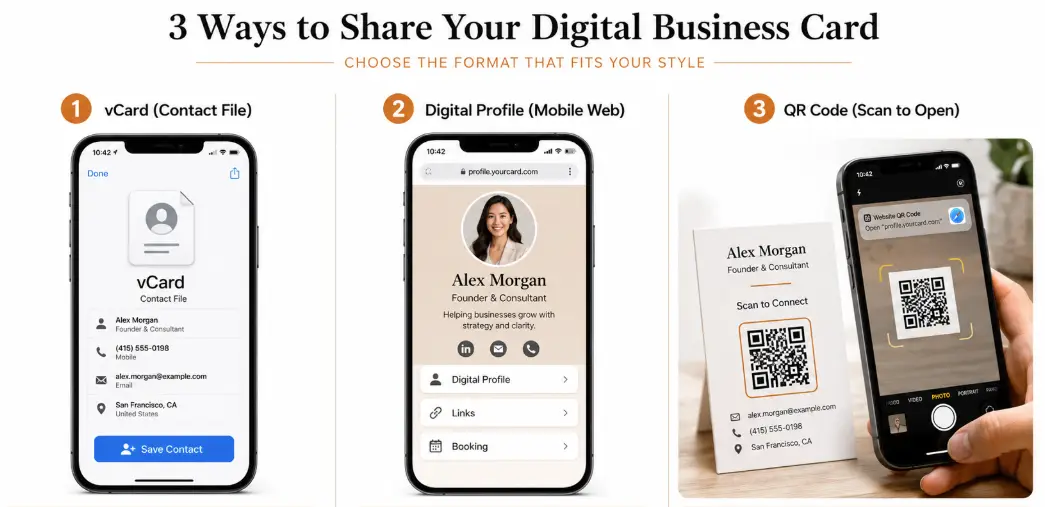
There are three common ways to build the card.
For a broader format check, VistaPrint’s guide to digital business cards is useful because it separates wallet-based, app-based, and NFC-enabled cards instead of treating every card as the same thing.
A vCard file is still useful when the goal is simple contact saving. Someone scans or opens it, then saves your details straight into their address book. The format is built for information like names, addresses, phone numbers, email addresses, URLs, photos, and logos, according to the RFC 6350 vCard specification. Good for saving. Less good for guiding action.
A mobile web card opens as a page. This is usually better when you want links, buttons, booking paths, forms, product sections, videos, or a small portfolio.
A digital business card QR code points people to either one of those. I usually prefer a QR code that opens a live mobile page, because you can update the page after the QR is already printed. Tiny miracle. Very useful.
If you use a free digital business card app, check one thing before you commit: can you edit the live card without changing the shared link? If not, every printed QR code and old email signature becomes fragile.
Step-by-Step Workflow
Build the mobile card page
Open your digital business card maker and start with the mobile view, not the desktop preview.
Most people will open your card from a phone. At a booth. In a hallway. From an Instagram bio. While holding coffee. So the first screen has to answer three questions fast:
- Who are you?
- Why should I care?
- What should I tap first?
Keep the top section simple: your name, role, face or logo, one short positioning line, and one primary button.
For example:
Mia Carter
UGC creator for skincare and wellness brands
Primary button: Request rates
Then add only the proof someone needs before taking that action. A freelancer might need portfolio samples. A real estate agent might need listings and a phone button. A salon owner might need services, location, booking, and Instagram.
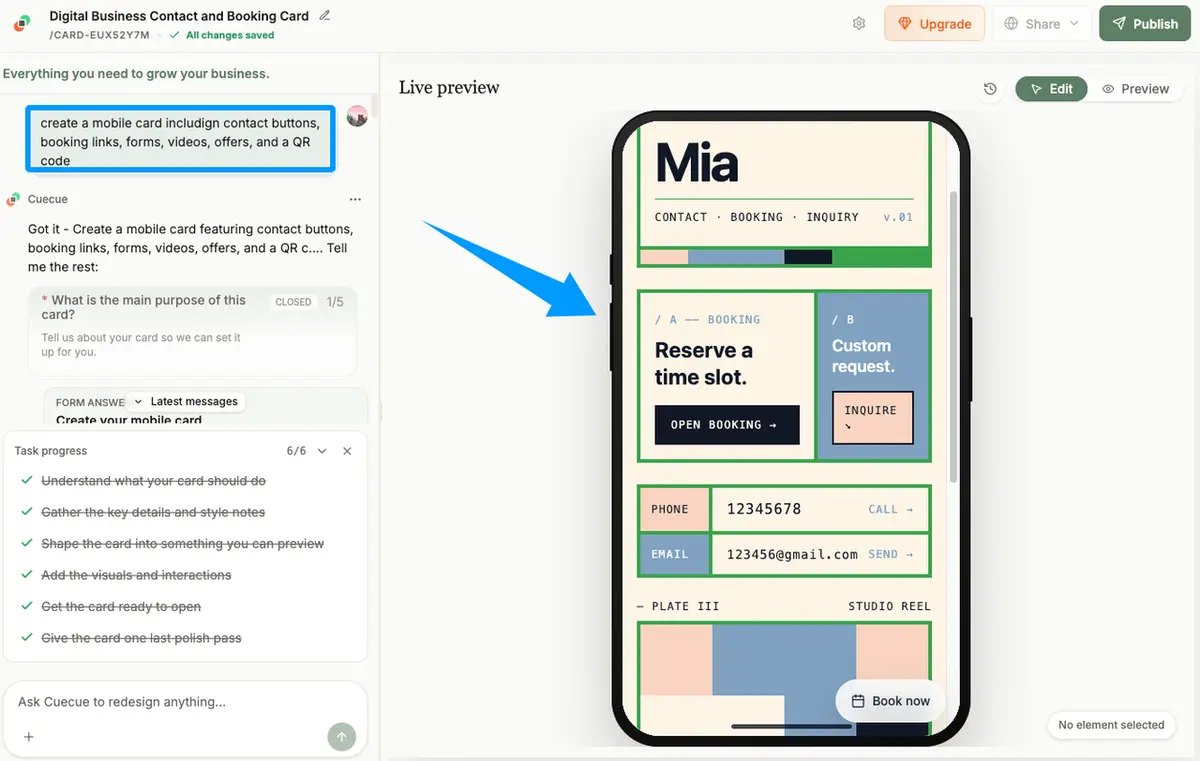
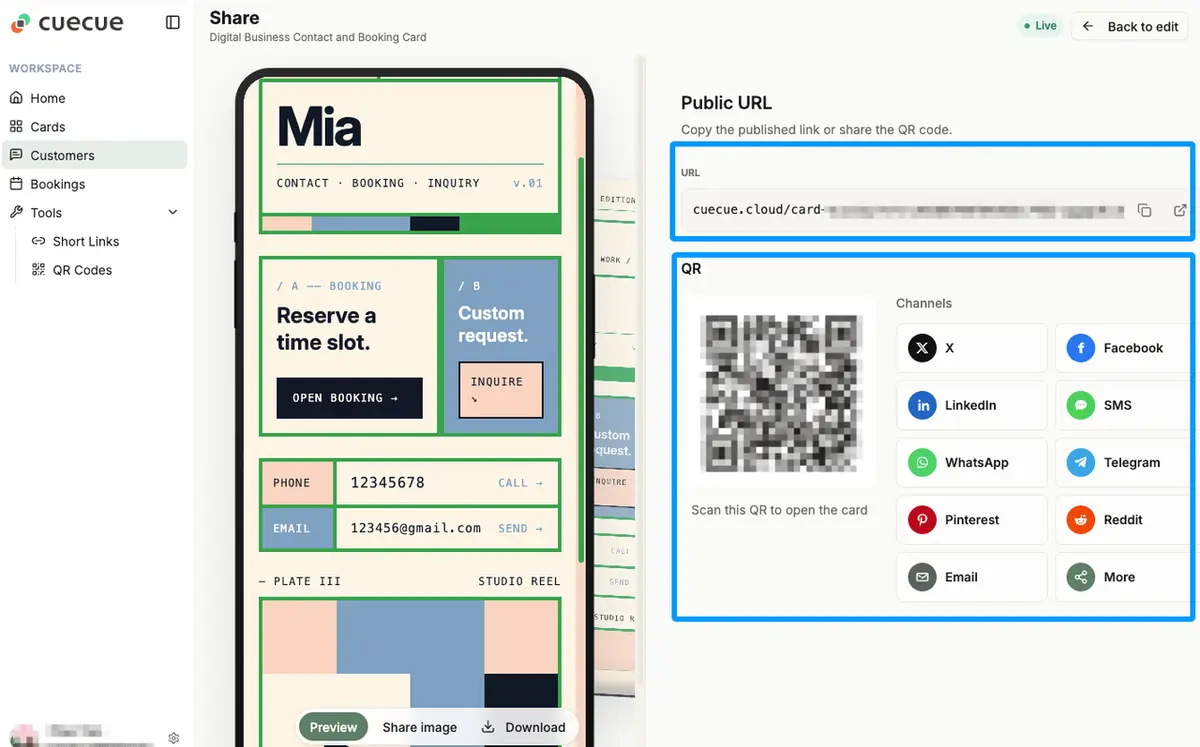
CueCue fits best as the “make the page useful after the scan” example. You can put contact buttons, booking links, forms, videos, offers, and a QR code on one mobile card, then point people there instead of trying to build a whole website around one introduction.
One caution: make buttons easy to tap. WCAG 2.2 says pointer targets should be at least 24 by 24 CSS pixels, with some exceptions. I would go bigger for a business card page. Nobody should have to pinch-zoom to contact you.
Add contact paths and useful links
Your card does not need every link you own. It needs the links that help someone move.Start with the basics:
- Phone or text, if you use it professionally
- Booking link
- Website or portfolio
- Social profile that proves current activity
- Contact form or inquiry form
- Location, if your business depends on it
Then add one or two supporting links.
Not six. Not twelve. One or two.
A digital card works best when it removes decision fatigue. If your card has Instagram, TikTok, YouTube, LinkedIn, portfolio, newsletter, shop, podcast, media kit, and three booking options, the visitor has to become a project manager. They will not.
For local businesses, keep your platform links consistent with your public profiles. Google’s Business Profile help notes that social links are region-dependent and generally limited by platform type, with formats like https://www.instagram.com/{username} for Instagram profiles in supported cases. That makes your card useful as the hub where all current paths stay tidy, even if each platform has its own rules.
For a professional card, I would usually use this order:
- Primary action
- Contact save or email
- Booking or inquiry
- Best proof link
- One social profile
That is enough to start.
Prepare QR and sharing options
Now turn the card into something you can actually share.
You will usually need:
- A short public link
- A digital business card QR code
- A version for your email signature
- A version for social bios
- A printable version for badges, flyers, table tents, or packaging
Test the QR code before you put it anywhere permanent.
Scan it from an iPhone and an Android phone if you can. Open it on mobile data, not just your home Wi-Fi. Check that the first screen loads fast enough and the main button is visible without scrolling.
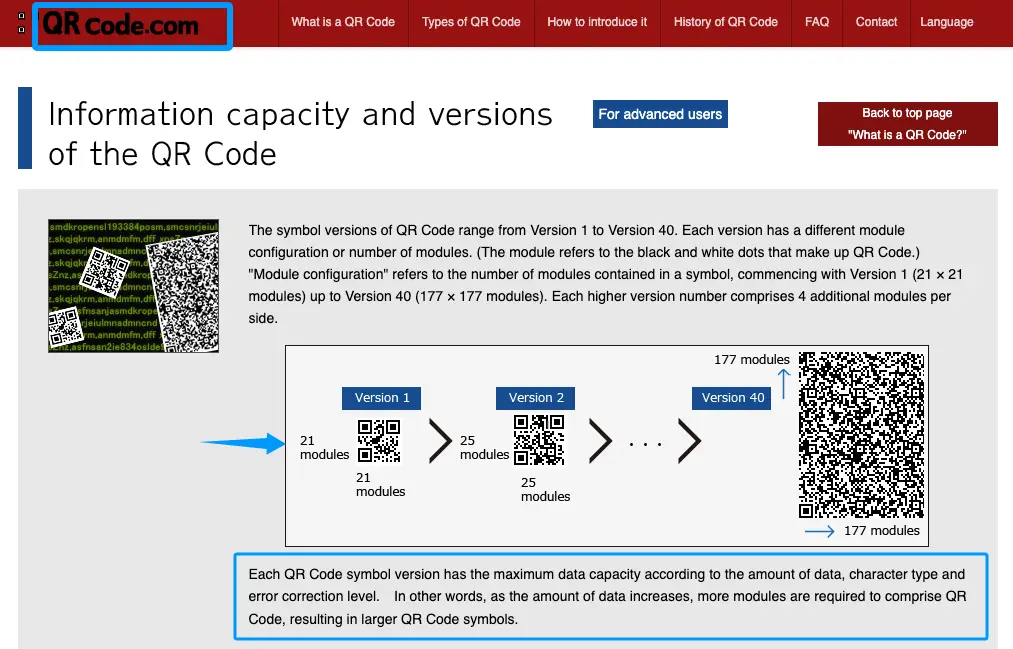
QR codes can hold different amounts of data depending on version, data type, and error correction level, and DENSO WAVE explains that higher data volume makes the symbol larger and more complex. That is why I prefer encoding a short URL instead of stuffing the QR with every contact detail. Cleaner code. Easier scan.
Also decide how you will handle updates.
If that QR is going on something physical, like a card, sticker, sign, or brochure, send it to a URL you control. Future-you may need to change the offer, booking link, job title, or portfolio. Reprinting everything because one link changed is the kind of tiny disaster I try very hard to avoid.
That one choice saves future-you a lot of sighing.
Common Setup Mistakes
The first mistake is making the card look like a directory.
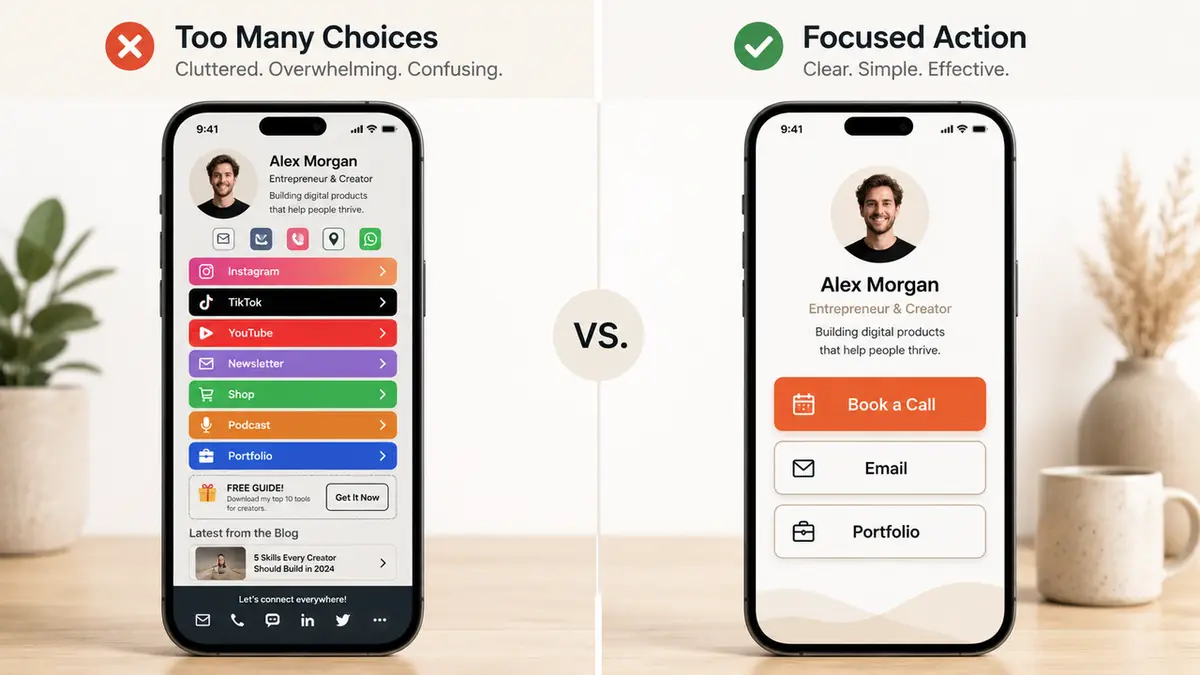
A card is not a junk drawer for links. If every button feels equally important, no button is important. Put the main action first and let the rest support it.
The second mistake is hiding the contact path. I used to do this with portfolio pages: lots of samples, lots of personality, and then the actual inquiry button was floating around near the bottom like a lost sock. Put the business action where a busy person can find it.
The third mistake is using a QR code that points to a static file you cannot edit. It feels fine on launch day. Then your booking tool changes, your title changes, your offer changes, and the old card is still out there doing weird little time travel.
The fourth mistake is skipping the boring test. Scan the QR. Tap every button. Submit the form. Save the contact. Send yourself the email. Do it before you share the card with real people.
Small test. Big relief.
Limits and Risk Notes
A digital business card is useful, but it is not magic.
It will not fix unclear positioning. If your card says “creative strategist and solutions partner,” people may still have no idea what to ask you for. Use normal words.
It will not replace a full website when you need deep content, SEO pages, a large product catalog, legal pages, or complex support flows. Keep the card focused on quick action.
There are also privacy and maintenance risks. Do not put personal information on a public card just because there is a field for it. If you would feel weird having a stranger see your phone number, address, or calendar link, leave it off or make a separate version. And if you use a contact form, know where the submissions land and who can open them.
And please review the card after every meaningful change in your work. New offer? New booking link? New phone number? New portfolio? Check the card.
A shared link ages quietly. That is the danger.
Conclusion
How to make a digital business card is mostly a question of restraint.
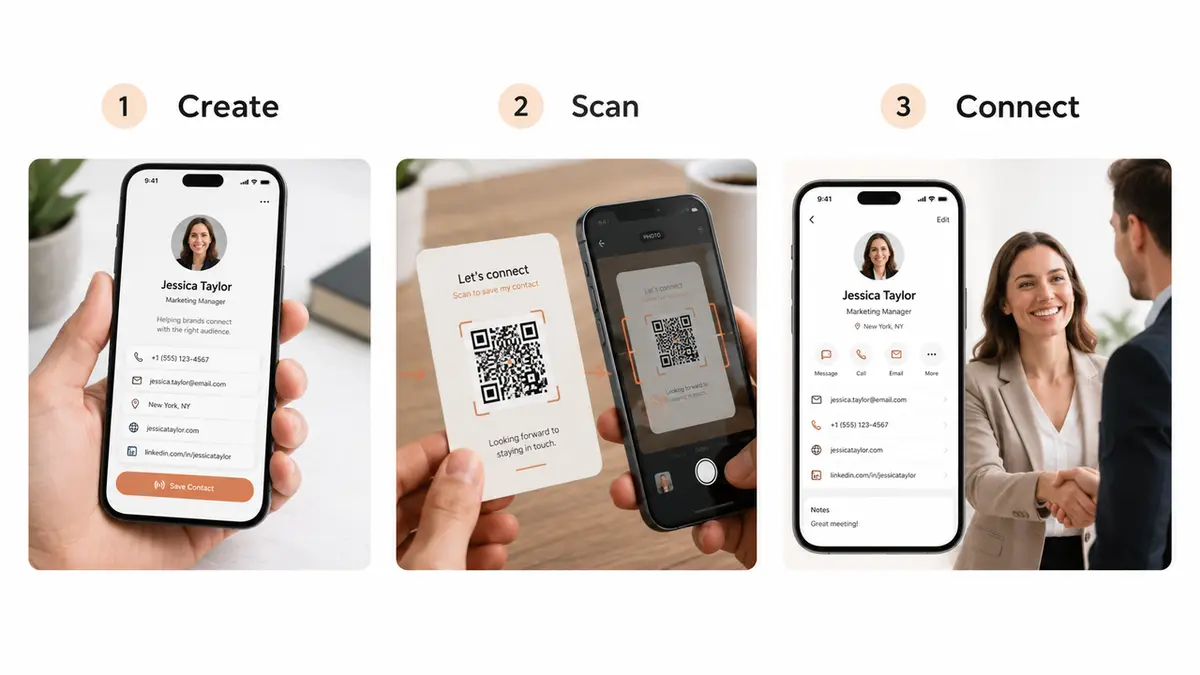
Pick one action. Build the mobile page around it. Add the contact paths that support it. Create a QR code that points to an editable link. Test the whole thing like someone impatient is using it between conversations.
Your one move today: write the sentence, “After someone opens this card, I want them to ___,” then build the card around that blank.
FAQ
Can I reuse one card for different campaigns?
You can, but I usually would not reuse the same card for every campaign. Use one evergreen professional card for your main contact path, then make campaign-specific versions when the action changes. A workshop card, a real estate open-house card, and a consulting inquiry card should not all ask for the same click.
What if an old card link is already shared?
Keep the old URL alive if people may still have it. Update the destination page, add a note if the offer changed, and move the main button to the current action. If the card is truly outdated, redirect it to your current card instead of letting people land on a dead page.
Can I make a card before I have a website?
Yes. That is one of the best use cases. Build the card around your name, offer, proof, contact path, and one next step. You can always add a full website later. For now, the card can handle the first conversation.
How often should I review an active card?
Review the card once a month. Also review it any time your offer, pricing, booking link, role, location, or portfolio changes. The quickest test is boring but effective: scan your own QR code and pretend you have never met yourself before. If the next step feels fuzzy, fix that before you share it again.
Should I keep a backup version of the card?
Yes, especially before big edits. Keep a simple backup of the copy, links, QR destination, and contact details. Not because you will need it every week. Because the one time a launch page breaks right before an event, you will be deeply glad it exists.
About this content
- Written by
- Mia Anderson, UGC Creator · Content Creator
- Reviewed by
- CueCue Team, Editorial review desk
- Last updated
- July 8, 2026
- Editorial standard
- CueCue articles are written for practical use, checked for clear sourcing, and updated when product or policy details change.